CenterPoint® Payroll
- Default Pay Runs
Related Help
 View or Print as PDF
Default pay runs allow you to define one or multiple standard pay runs to copy from. This makes data entry easier because you only have to attend to the exceptions for the pay run, for example, employees who took leave or worked a non-standard number of hours. Default pay runs can be created by following the Create a Default Pay Run procedure or when prompted when you are paying employees.
Create a Default Pay Run
- Select Setup > Payroll Details > Default Pay Run.
- Click New.
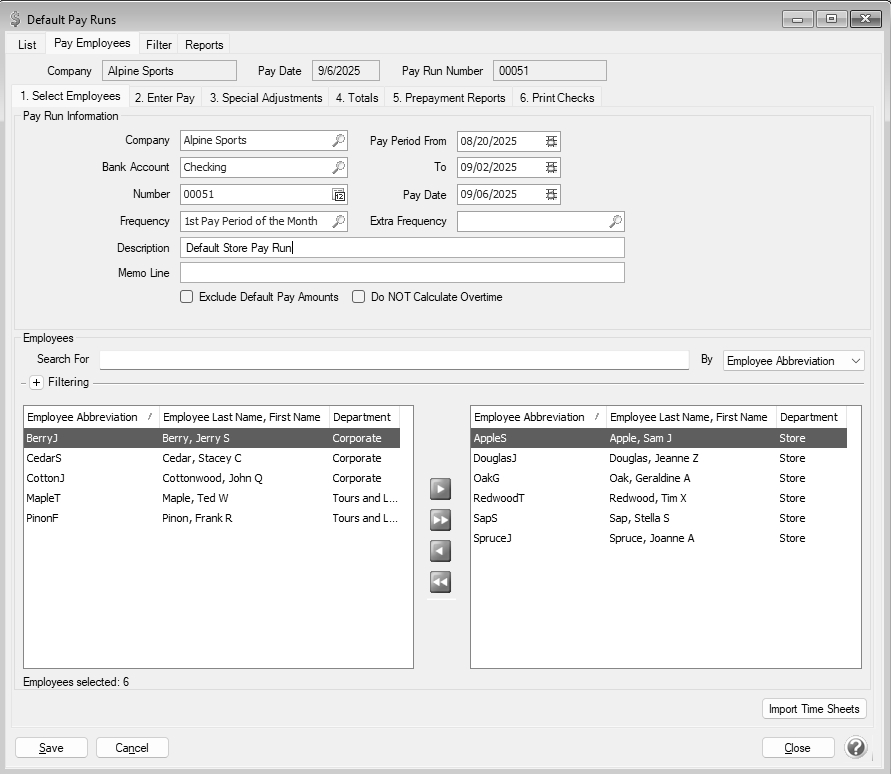
- On the Select Employees tab, under Pay Run Information, enter the default pay run details.
- Company - Select the company that this pay run is for.
- Bank Account - Select the bank account that checks will be written from and direct deposits will be debited from.
- Number - The default pay run number will be displayed. A new number will be used when you use the default pay run in Pay Employees
- Frequency - Select the frequency (schedule) to determine which deductions/benefits and earnings are included for each selected employee, and only include those deductions/benefits and earnings with the assigned schedule.
- Pay Period From - To and Pay Date - These dates should represent the work dates for a typical pay run, like a biweekly pay run and a Friday pay date. The dates selected here are used when creating the default pay run; the actual next pay run dates will be assigned when you copy the default pay run in Pay Employees.
Note: If you are using calculated overtime in a default pay run, ensure the overtime periods copy correctly by setting File > Preferences > Payroll > Pay Dates to Yes. When the pay dates appear, do not modify them.
- Extra Frequency - If there are any additional deduction/benefit schedules that need to be included, select the frequency in this box.
- Description - The description for this pay default displays as Pay Date: {Pay Date} Number: {Number} {Company Name}, for example: Pay Date: 9/6/2025 Number: 00051 Alpine Sports. This description should be changed to something meaningful so you can easily recognize it when starting a new pay run. For example, your description may indicate this pay run is a default pay run for a specific department.
- Memo Line - Enter an optional memo. The memo entered here will appear in the Memo Line 1 field of any check/advice definitions that include the field (including the system-supplied checks.)
- Under Employees, select the employees that you want to pay in this pay run. The number of Employees selected will appear under the list on the left side of the screen.
- Click the 2. Enter Pay tab.
- Highlight an employee name in the upper-left box.
- Enter the default hours for each appropriate earning and any other default details, for example for a fixed rate earning like bonus or commissions.
- Repeat steps 5-6 for each employee. To select the next, previous, last, or first employee:
- Select the employee by clicking the employee name
- Select an employee by using the selection icons under the employee list
- Select the last employee by pressing Alt + End.
- Select the first employee by pressing Alt + Home.
- Select the previous employee by pressing Alt + <.
- Select the next employee by pressing Alt + >.
- After verifying the default pay run setup, click Save . At the Changes to the pay run have been saved successfully message, click OK.
- The default pay run will display on the List tab. The pay run can be changed, deleted, or copied.
Use a Default Pay Run to Pay Employees
- Select Processes > Pay Employees.
- Click New.
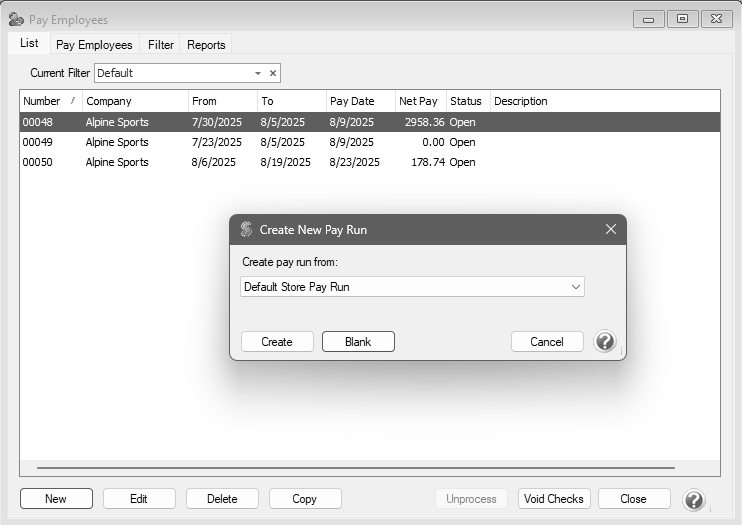
- In the Create pay run from: box, select a default pay run.
- Click Create.
- The pay run will be created with the details specified in the default pay run. Follow the Pay Employees topic to change/verify and post/print the pay run.
Edit a Default Pay Run
Default pay runs can be created by following the Create a Default Pay Run procedure above or when you are paying employees. The default pay runs can be edited by selecting Setup > Default Pay Runs, selecting the pay run to be changed from the tab, and then clicking Edit.
|
Document: 3484 |
|---|
 See Also