CenterPoint® Payroll
- One Big Beautiful Bill Act (OBBBA) - No Tax on Overtime and Tips
Related Help
 View or Print as PDF
This document outlines the functionality added to CenterPoint Payroll for the One Big Beautiful Bill Act.
Step A: Designate Qualified Tip Earnings
Step B: Assign Tipped Occupational Codes to Employees
Step C: Designate Employer as a Specified Service, Trade or Business
No Tax on Overtime
Qualified overtime represents the portion of compensation that exceeds the regular rate of pay, specifically the “half-time" pay. Designate qualified overtime earnings and use the Qualified Overtime Pay report to reconcile 2025 Form W-2, Box 14, or provide to employees as a supplemental report.
Step A: Designate Qualified Overtime Earnings
In 2025, qualified overtime earnings will be reported on Form W-2 , in Box 14. In 2026, qualified overtime earnings will print on Form W-2, in Box 12, Code TT.
- Select Setup > Payroll Details > Earnings
- Select an earning you want to specify as a qualified overtime earning and click Edit.
- Select the Qualified Overtime check box. (only applies to Manual Overtime and Calculated Overtime Earning Types).
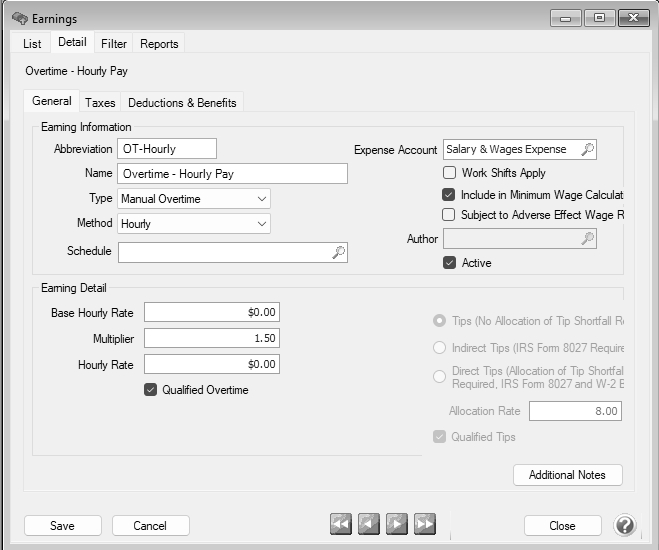
- Click Save.
- At the Do you want to apply the current Earning configuration to your Employer(s)? message, click Yes. Verify your changes and then click Next. At the Update Complete message, click OK.
- Repeat Steps 1-5 for all qualified overtime earnings.
Note: If overtime earnings are set to Regular Pay, you cannot use the Qualified Overtime Pay report to reconcile the amounts on Form W-2. If a Regular Pay overtime earning code was used at any time during the year, use the Employee Earnings report to manually calculate qualified overtime wages for those pay runs. For example, for time and a half, divide the total employee wages by one-third (1/3), or for double-time, divide the total by one-fourth (1/4). Use this value on Form W-2 in Aatrix. To make reporting Qualified Overtime easier in the future, consider creating a new overtime earning code (Manual or Calculated Overtime) instead of the Regular Pay code.
Step B: Print the Qualified Overtime Earning Report
You can use the Qualified Overtime Pay report to reconcile the reported Form W-2 values or to hand out to employees as a supplemental report to show the total to be applied as a deduction on their individual tax return (employees should consult their tax preparer for guidance).
Note: Reporting qualified overtime on the W-2 is not required for 2025. As a convenience, CenterPoint can use your payroll setup and posted pay run data to calculate qualified overtime and report it in Box 14 of the 2025 W-2. Because overtime rules are complex and CenterPoint allows for flexibility in how overtime is calculated, the qualified overtime calculations may not be accurate in all situations. Overtime paid on a daily basis, calculated on leave earnings, or adjusted by a work shift may be over- or understated. Please review the results before completing W-2s. Any necessary adjustments can be made during W-2 processing in the Aatrix W-2 Preparer grid.
Red Wing Software will continue to monitor IRS guidance on overtime reporting requirements for 2026.
To simplify 2026 reporting, employers who pay overtime in excess of federal requirements may want to set up separate earning codes for qualified overtime and non-qualified overtime.
- Select Reports > Reports > Payroll Data Reports > Earnings > Qualified Overtime Pay.
- Revise your Report Selections. For example, the report can be printed for all or specific employees or pay dates.
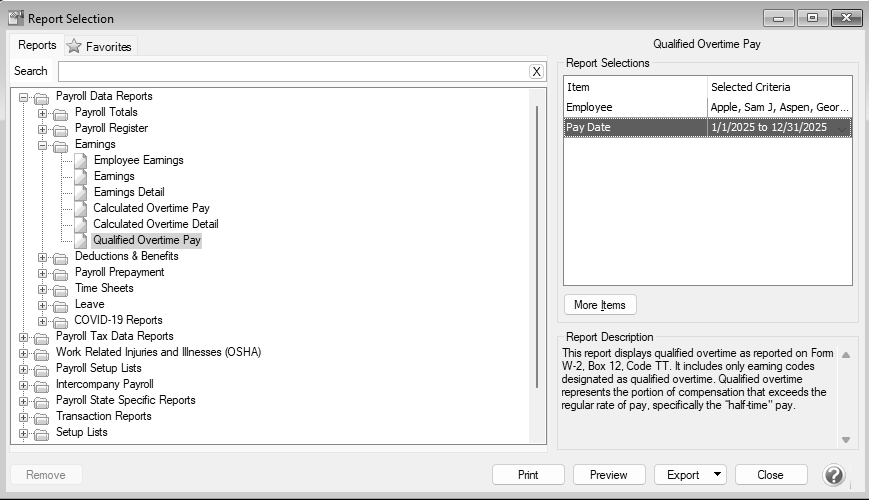
- Click Preview.
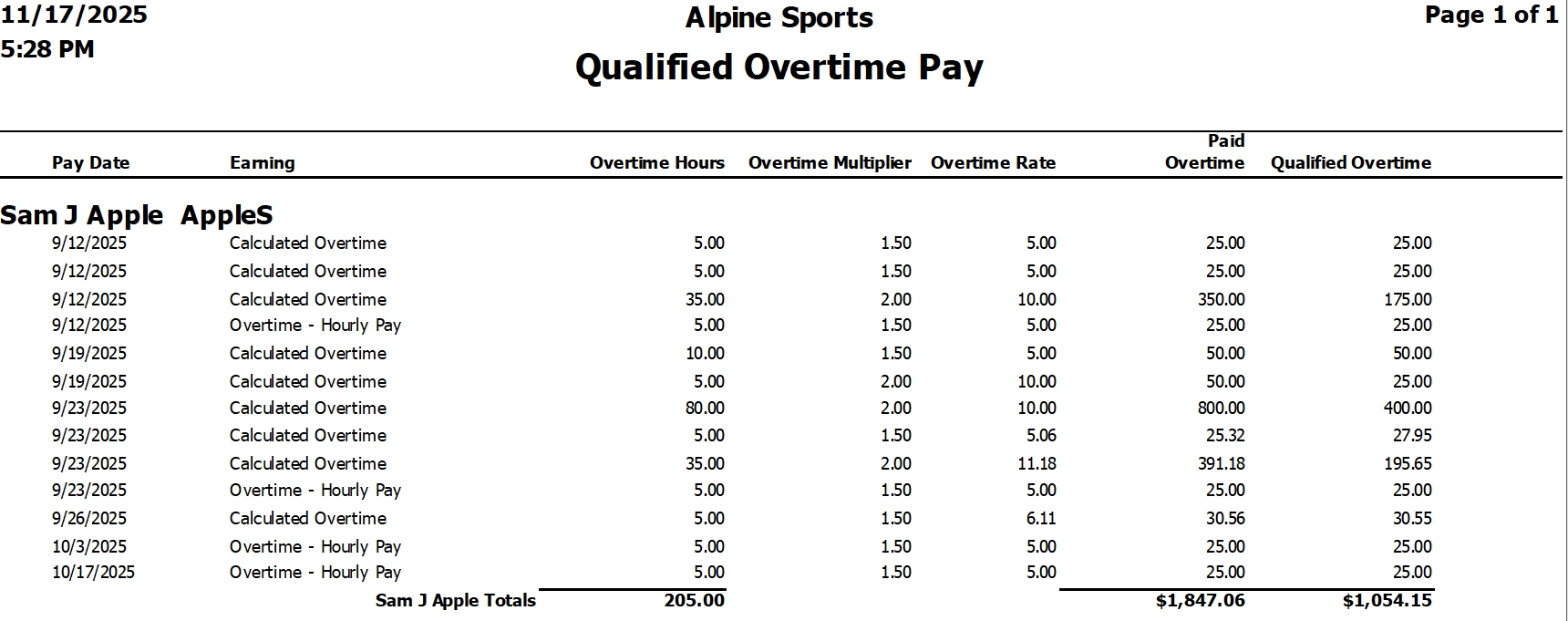
- The report is grouped by Employee and includes the following columns and calculations:
- Pay Date (Check Date)
- Earning Name
- Overtime Hours
- For Calculated Overtime: [Pay Run Earning Hours Overtime]
- For Manual Overtime: [Pay Run Earning Hours Worked]
- Overtime Multiplier
- For Calculated Overtime: [Pay Run Earning Overtime Multiplier]
- For Manual Overtime: [Pay Run Earning Rate] / [Pay Run Earning Base Rate]
- Overtime Rate
- For Calculated Overtime: [Pay Run Earning Rate]
- For Manual Overtime: [Pay Run Earning Rate] - [Pay Run Earning Base Rate]
- Paid Overtime
- For Calculated Overtime: [Pay Run Earning Amount]
- For Manual Overtime: ([Pay Run Earning Rate] - [Pay Run Earning Base Rate]) x [Pay Run Earning Hours Worked]
- Qualified Overtime
- For Calculated Overtime: [Pay Run Earning Average Rate] x 0.5 x [Pay Run Earning Hours Overtime]
- For Manual Overtime: [Pay Run Earning Base Rate] x 0.5 x [Pay Run Earning Hours Worked]
Note: Small differences between Qualified Overtime and Paid Overtime may occur because of rounding.
-
If you want a page break after each employee to make the report easier to hand out, select the Group & Sort tab from the left side of the screen.
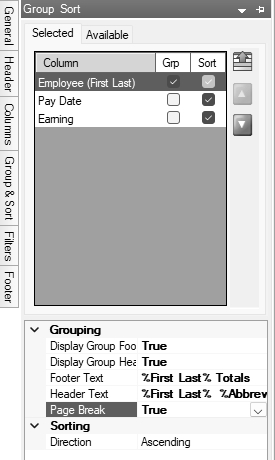
- Select the Page Break section and then click the drop-down arrow and select True.
- Click Refresh.
- Click the Print icon.
No Tax On Tips
For 2025, qualified tips will be reported on Form W-2, in Box 14. In 2026, the Tipped Occupation Code will be reported on Form W-2 , in Box 14b.
Step A: Designate Qualified Tip Earnings
- Select Setup > Payroll Details > Earnings
- Select an earning you want to specify as a qualified tip earning and click Edit.
- Select the Qualified Tips check box.
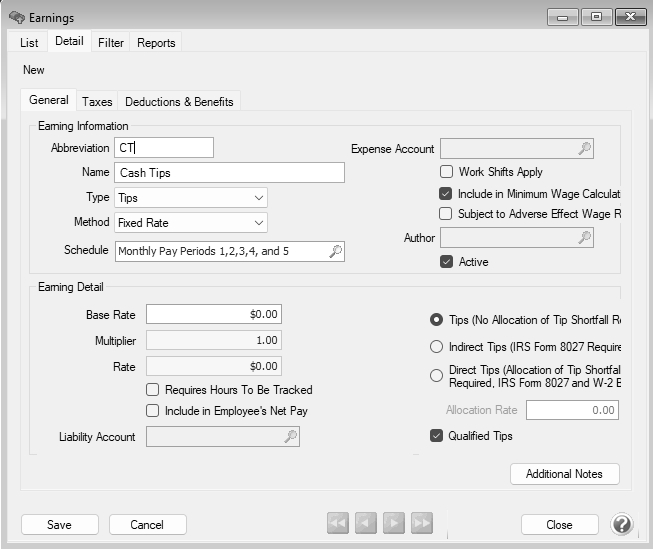
- Click Save.
- At the Do you want to apply the current Earning configuration to your Employer(s)? message, click Yes. Verify your changes and then click Next. At the Update Complete message, click OK.
- Repeat Steps 1 -5 for all qualified tip earnings.
Step B: Assign Tipped Occupational Codes to Employees
Employers must report this code in Box 14b of the 2026 Form W-2, along with qualified tips in Box 12, with code TP.
- Select Setup > Employees. Select an employee that should have a tipped occupational code assigned and then click Edit.
- Select the Payroll tab.
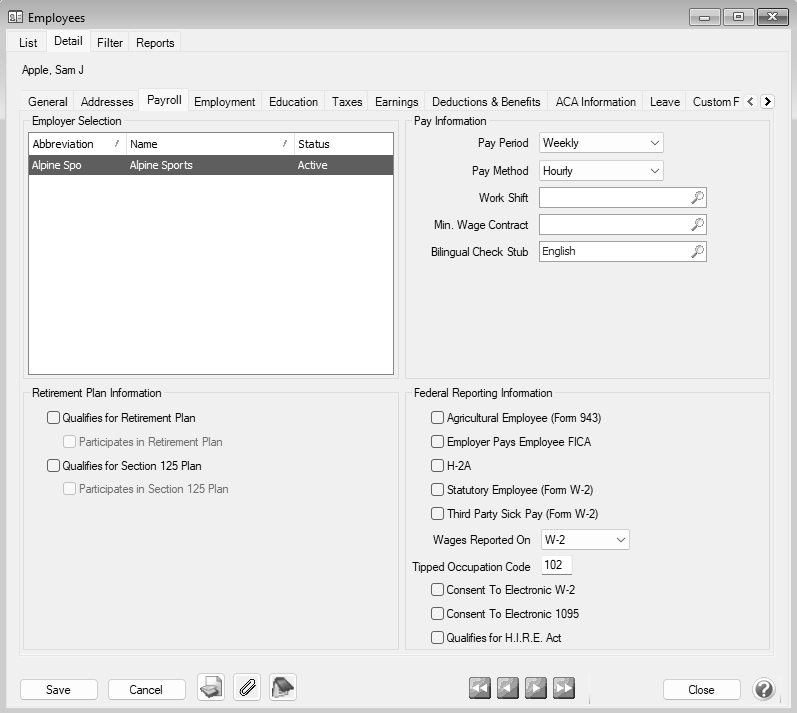
- In the Tipped Occupation Code box, enter a Treasury Tipped Occupation Code (TTOC), a three-digit system created by the IRS to classify jobs that customarily and regularly receive tips. A detailed list of codes can be located on the Department of Treasury website
- Click Save.
Step C: Designate Employer as a Specified Service, Trade or Business
If your company is a specified service, trade or business, all tips will be reported on Form W-2, Box 14, code TS in 2025 and Form W-2, Box 12, code TS in 2026. A list of specified service, trade or businesses can be located on the IRS website.
- Select Setup > Employers.
- Select an employer you want to specify as a specified service, trade, or business and click Edit.
- Select the Earnings tab.
- From the upper-left side of the screen, select Earning.
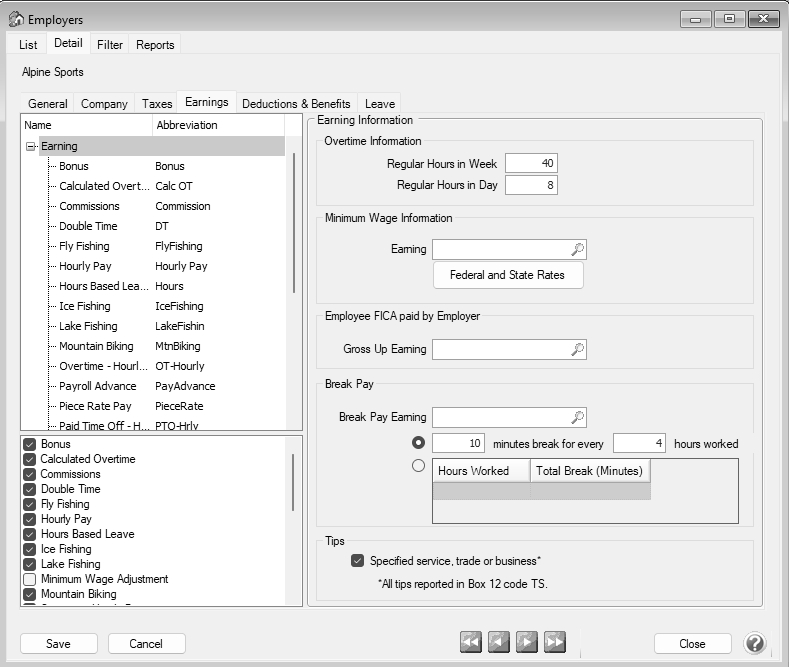
- On the right side of the screen, in the Tips section, select Specified service, trade or business. This box should be selected only if your business is on the list of specified services, trades, or businesses. If this box is selected, all tips will be reported on Form W-2, Box 14, code TS in 2025 and Form W-2, Box 12, code TS in 2026.
- Click Save.
|
Document: 3481 |
|---|
 See Also