- Minnesota Paid Leave Tax
Related Help

Minnesota's Paid Family & Medical Leave program starts January 1, 2026, requiring most employers to contribute to a state fund via payroll taxes (shared with employees) to provide partial wage replacement for workers taking leave for family/medical reasons. The tax has an employee and employer share. It has a cap based on the Social Security limit. The rate is split 50/50 between the employee and the employer, but the employer can pay all or part of the employee’s share. If an employer chooses to pay some of the employee's share, that amount must be treated as taxable wages and shown on the W-2 in boxes 1, 3, and 5.
If the employer is not paying any portion of the employee share, Steps A - B are required. If the employer is paying some of the employee share, Steps A-C are required.
Step A: Add Minnesota Paid Leave Tax to Employer
Step B: Add the Minnesota Paid Leave Tax to Minnesota Employees
Step C: For Employers Paying Some or All of the Employee Share
Step A: Add Minnesota Paid Leave Tax to Employer
- Select Setup > Employers > Taxes tab.
- From the top left side of the screen, select Minnesota.
- From the bottom left side of the screen, select Minnesota Paid Leave. The tax will be added to the top left side of the screen.
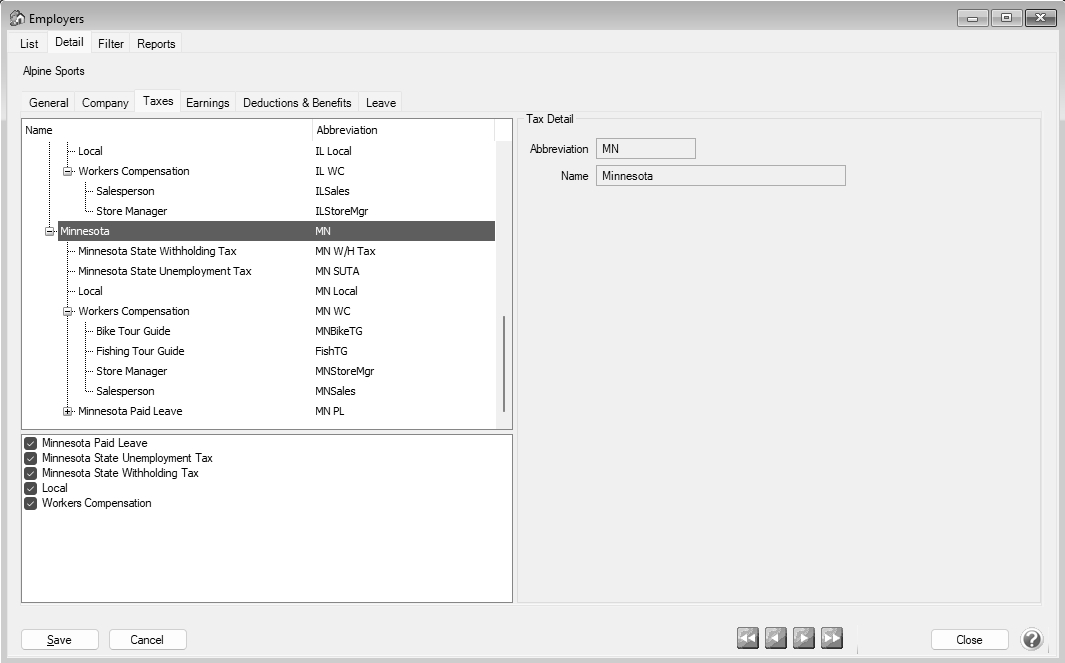
- From the left side of the screen, expand the Minnesota Paid Leave node so you see the Employer and Employee portions.
- Select the Employee Share.
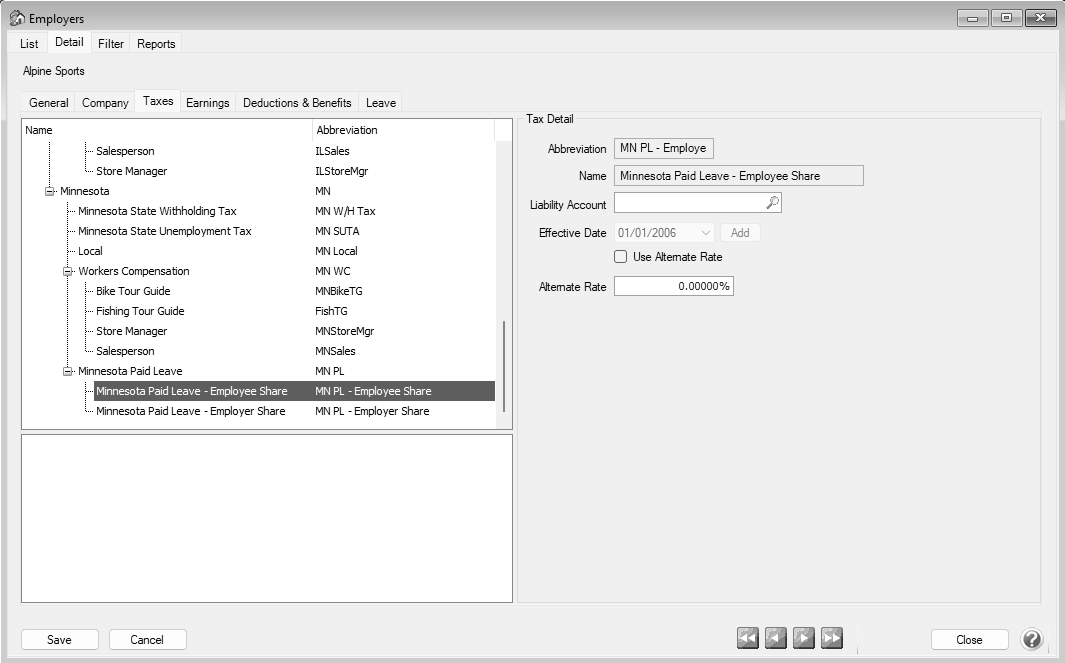
- On the right side of the screen, if your employer pays a portion of the employee's share, select the Use Alternate Rate check box, in the Rate box, enter the lower employee rate, and enter any applicable account information.
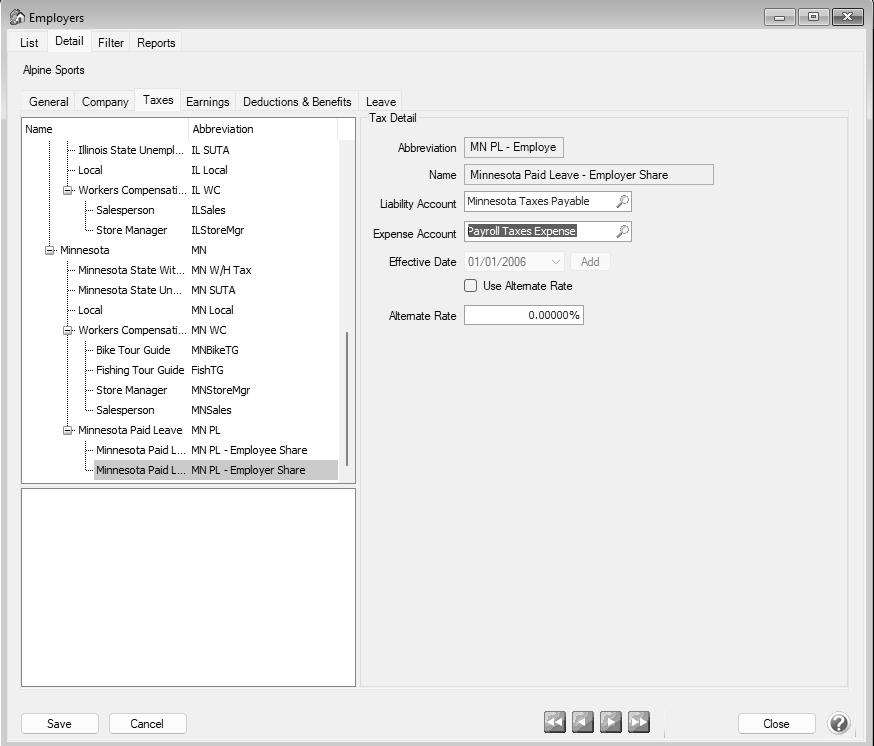
- From the left side of the screen, select the Employer Share.
-
On the right side of the screen:
- If your employer qualifies as a small employer, select the Use Alternate Rate check box and change the Rate to the lower small employer rate.
- If your employer is paying some of the employee share, do not select Use Alternate Rate. The system will calculate at the default percentage.
- Enter any applicable account information.
- Click Save.
Note: Each time a new tax is added to CenterPoint Payroll, it is important to check the Setup > Payroll Details > Deductions & Benefits > Taxes tab for all deductions/benefits. The Taxes tab allows you to decide if an employee deduction should be calculated before or after taxes and if an employee is responsible for paying taxes on a benefit provided by the employer.
Step B: Add the Tax to all Minnesota employees
Option A: Add to Individual Employees
- Select Setup > Employees > Taxes tab.
- Select an employee you want to add the Minnesota Paid Leave tax to and click Edit.
- Select the Taxes tab.
- From the upper left side of the screen, select Minnesota.
- From the lower left side of the screen, select Minnesota Paid Leave.
- Select the Employer Share.
- On the right side of the screen, select the Expense Account.
- Click Save.
- Repeat steps 1 - 5 for all employees the Minnesota Paid Leave tax should be assigned to.
Option B: Add to Multiple Employees
Important Note: It is recommended to perform a backup of your database prior to completing this step. For more information, see the Backup and/or Restore a Single User Database topic.
- Select Setup > Payroll Details > Employee Mass Update.
- The list of employees displays. Click Select All to select all employees or select multiple employees by pressing the CTRL key while you make your selections.
- Click Mass Update.
- In the Category box, select Taxes.
- In the Employer box, select the employer you want to update taxes for.
- On the right side of the screen, in the Method box, select Only Add Record if Missing.
- On the left side of the screen, select Minnesota Paid Leave tax.
- Expand the Minnesota Paid Leave node and select Employer.
- Enter the Expense Account.
- Click Update.
If the employer is not paying any portion of the employee share, Steps A - B are required. If the employer is paying some of the employee share, Steps A-C are required.
Step C: For Employers Paying Some or All of the Employee Share
- Select Setup > Payroll Details > Deductions and Benefits and click New.

- Enter an Abbreviation and Name. It is recommended that you use a specific abbreviation , for example, MNPL for reporting purposes.
- In the Type box, select Other Taxable Deduction/Benefits.
- In the Contributor box, select Employer.
- Select the Liability and Expense accounts. These should be the same as used on the Tax portion.
- Select the Combine Benefit with Tax for Reporting check box to combine the MN Paid Leave benefit and MN Paid Leave tax amounts for state tax reporting from Reports > Federal & /State Payroll Forms & Reports (Aatrix).
- In the State box, select Minnesota.
- In the Tax Forms Item box, select Paid Family Leave.The TT# box will display 6082.
- Under Employer Details in the W-2 Box - Options box, select Box 14 Other.
- In the Employer Method box, select Percent of Gross Wages.
- Select the appropriate schedule, normally All pay periods.
- In the Rate box, enter the amount of the Employee Share the employer is paying.
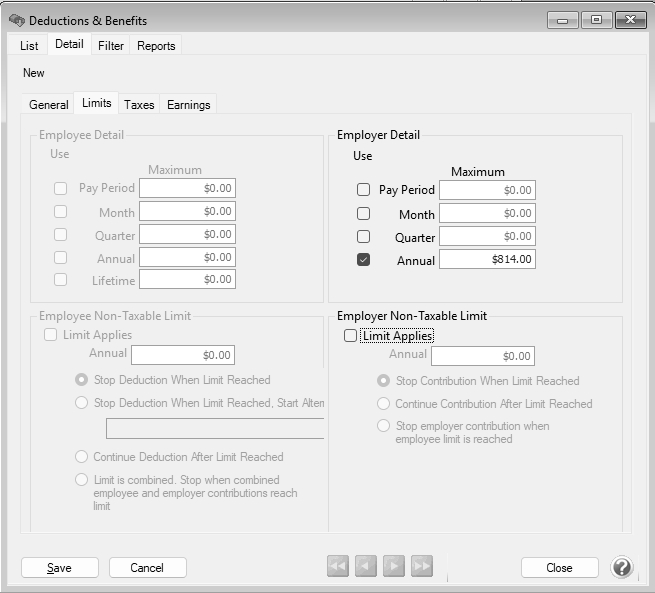
- Select the Limits tab, select the Annual check box and enter the limit. (This is the tax calculation amount limit, not the wage limit. To calculate the limit, multiply the wage limit by the Rate on the General tab. For example, in 2026 if you are paying the full employee portion, the calculation would be $185,000 x .0044 and the limit would be $814.00.)
- Select the Taxes tab. The Benefit is taxable for section should include Federal Withholding, Medicare Tax, and Social Security Tax (W-2 Boxes 1, 3, and 5).
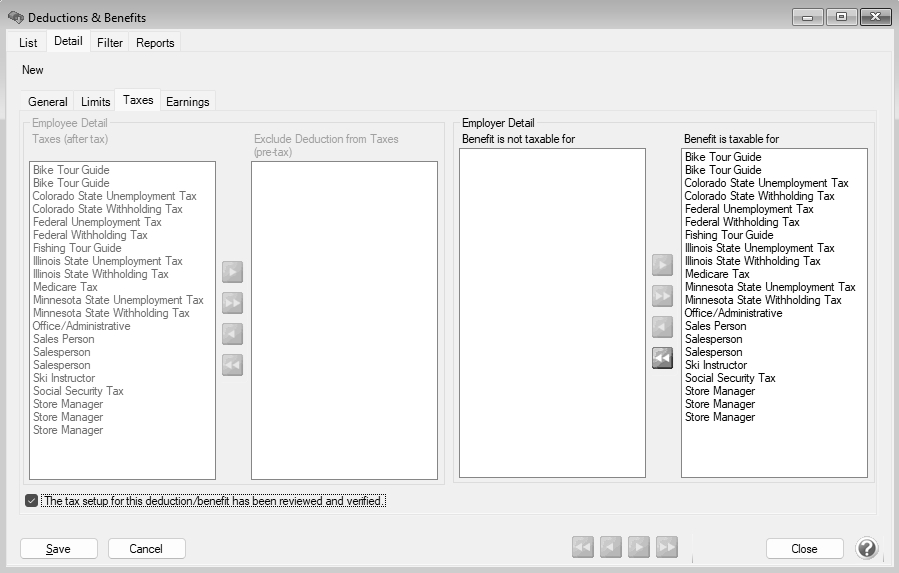
- Select the This tax setup for the deduction/benefit has been reviewed and verified. check box.
- Click Save.
- At the Do You Want to Add this Deduction/Benefit to employees? prompt, click Yes. Select the appropriate employees and click Add or to add to each employee select Setup > Employees > Deductions/Benefits tab, selecting an employee, click Edit, select the Deductions/Benefits tab, select the benefit from the bottom left side of the screen, and then click Save.
The Benefit-Linked Taxes report is used to report the MN Paid Leave tax associated with the MN Paid Leave benefit. The report includes gross wages, taxable wages, employer and employee tax amounts, and benefit amounts. Before printing state reports from Aatrix, use the State Unemployment Tax by Employee report to verify state unemployment and paid family leave tax totals by employee. Both reports can be selected from Reports > Reports > Payroll Tax Data Reports > State & Local Tax Reports.
Document: 3482 |
|---|